
NoMachine
com.nomachine.nxplayer
by NoMachine S.à r.l.
Screenshots




Ad slot: Top Leaderboard
About this app
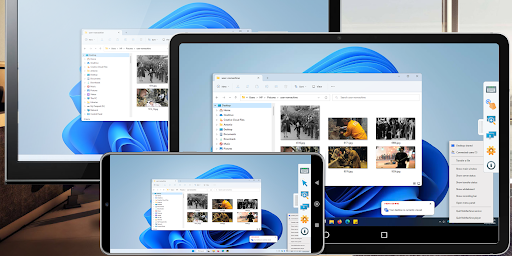
Connect from your device to any NoMachine-enabled PC or Mac at the speed of light. NoMachine is the fastest remote desktop software you have ever tried. In just a few clicks you can reach any computer in the world and start working on it as if it was right in front of you.
The perfect travel companion, you can use it to:
- Enjoy all videos, including HD movies, TV shows, and music files that are playable only on your computer
- Play graphic intensive games
- Remotely administrate unattended computers and give on-the-go support to colleagues and friends
- Control your computers remotely as if you were sitting in front of them
- Work with all your files, desktop applications and other programs all running on your computer elsewhere
Features:
- Access all computers behind firewalls
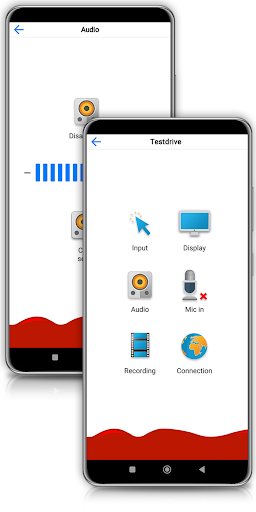
- High-resolution video and audio streaming
- Transfer files in both directions
- Record any activity on the remote desktop
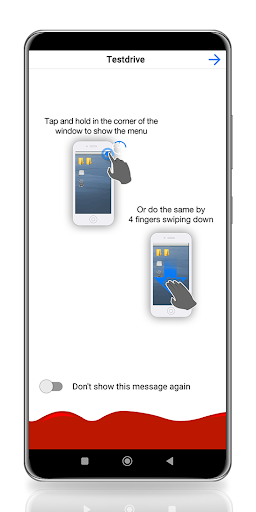
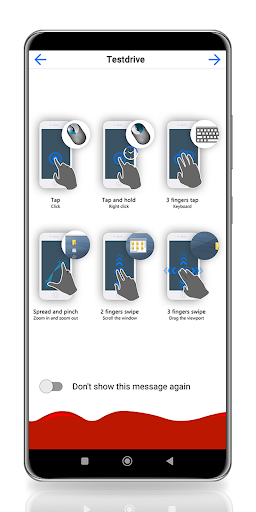
- Intuitive touch and control gestures
Quick guide
1) Install this app.
2) Download NoMachine from our website and install it on the computer you want to access.
3) In the NoMachine for Android GUI enter the IP of your computer.
4) You must already have an account on the remote computer. Enter the credentials for your user account when prompted.
5) For more detailed instructions check the tutorial here: https://www.nomachine.com/getting-started-with-nomachine-for-android
The perfect travel companion, you can use it to:
- Enjoy all videos, including HD movies, TV shows, and music files that are playable only on your computer
- Play graphic intensive games
- Remotely administrate unattended computers and give on-the-go support to colleagues and friends
- Control your computers remotely as if you were sitting in front of them
- Work with all your files, desktop applications and other programs all running on your computer elsewhere
Features:
- Access all computers behind firewalls
- High-resolution video and audio streaming
- Transfer files in both directions
- Record any activity on the remote desktop
- Intuitive touch and control gestures
Quick guide
1) Install this app.
2) Download NoMachine from our website and install it on the computer you want to access.
3) In the NoMachine for Android GUI enter the IP of your computer.
4) You must already have an account on the remote computer. Enter the credentials for your user account when prompted.
5) For more detailed instructions check the tutorial here: https://www.nomachine.com/getting-started-with-nomachine-for-android
What's New
New features in NoMachine 9:
* NoMachine Network in the palm of your hand
* Add an extra layer of security by using 2FA through your device
* General experience improvements and multiple bug fixes
For the complete list of enhancements and fixes available in this version,
please consult the announcement on the website: https://kb.nomachine.com/software-updates
* NoMachine Network in the palm of your hand
* Add an extra layer of security by using 2FA through your device
* General experience improvements and multiple bug fixes
For the complete list of enhancements and fixes available in this version,
please consult the announcement on the website: https://kb.nomachine.com/software-updates
App Information
Version Name
5.0.63
Version Code
167901185
File Size
41.2 MB
Minimum OS
Android 5.0+
Target SDK
Android 14
Developer
NoMachine S.à r.l.
Contact
Website
Content Rating
Everyone
Package Name
com.nomachine.nxplayerPermissions Required
This app may request the following permissions:
Recent Reviews
Dave Nicolai
4.0★
It is a great remote desktop app and I appreciate the inclusion of Linux clients. I think the list of saved connections should keep more saved settings, such as desired screen resolution, so that the user doesn't have to manually do it every time they connect. I would also like to see the option to hide the Android navigation bar for a true fullscreen experience.

Robin Yip
3.0★
The functionality is great (fast and flexible) and it is one of the only apps that performs like rdp to allow changing the server display resolution on the fly, but its android app is buggy. It crashes if you manually connect to a mac os server by ip. It connects if you allow auto discovery. Even then, it crashes on the initial connection and only works when you connect a second time.
Amity
1.0★
Literally Unusable. Used to be a fantastic application, and on desktops it still is, but the android build fails to connect the first time, silently connects in the background, and then when you reconnect it just tells you you cant have a second connection unless you fork over money. Trying to uninstall and reinstall the thing causes some kind of major malfunction to where it won't even open, and just crashes immediately after opening, with android popping up a message saying its bugged!

Atasco Osage
3.0★
Most recent update broke the ability to zoom out all the way, putting a black border around everything that covers up the desktop, forcing you to scroll to see the other side of the screen. Mouse constantly double-clicks by accident. The tab is permanently stuck on the right side of the screen, only able to go up or down. Options menus are barren, and what options they do give you are unreliable, especially the zoom features, which are prone to resetting themselves without warning.

A Google user
4.0★
Good app. Couple things that can be improved are - I use this to play games in my linux machine via lutris. When in game, it doesn't register single taps as clicks. I have to double tap which registers as a single click. - Having a ”change monitor" button on the sidebar would improve usability a lot. It is tedious to do it from settings. - When I disconnect abruptly, connection still persists on the server and prevents me from reconnecting. I can't connect without restarting the server.
Daniel Norris, II
3.0★
Must-have app! Super convenient and for the most part easy to set up. I've been using it for years to remote into a home PC. But I'm currently having trouble connecting a Samsung Galaxy Tab S8+ to a Windows 10 / 11 PC, the app immediately returns "Error: Host key Verification failed" I recopied RSA key to tablet, cleared app data and cache, uninstalled and reinstalled app, wiped cache partition, and rebooted tablet. It has worked in the past on this table. Currently working on phone and PC.
Ad slot: In-Content