

Samsung Flow
com.samsung.android.galaxycontinuity
by Samsung Electronics Co., Ltd.
Screenshots
Ad slot: Top Leaderboard
About this app
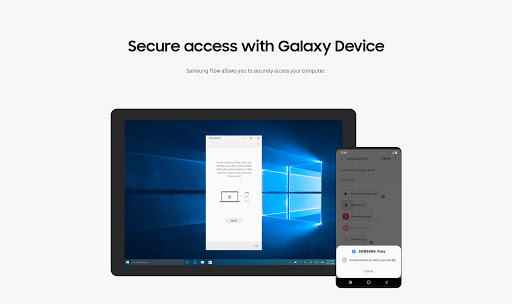
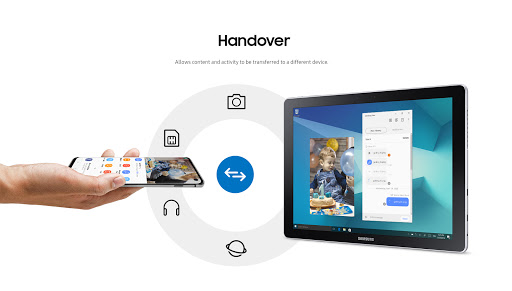
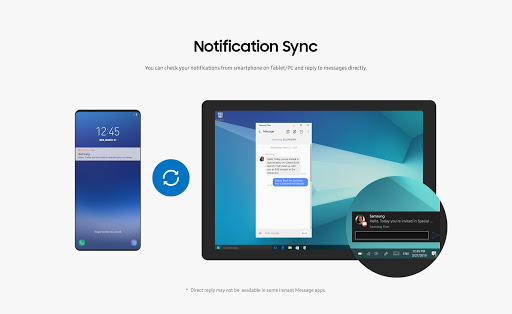
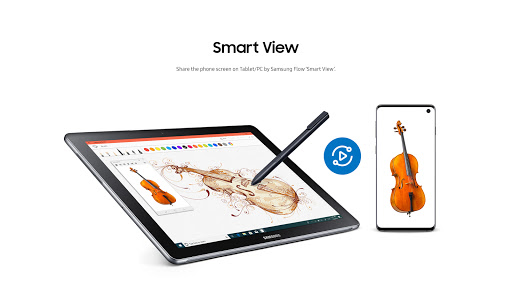
Samsung Flow is a software product that enables a seamless, secure, connected experience across your devices. You can authenticate your Tablet/PC with your smartphone, share content between devices, and sync notifications or view contents from your smartphone on your Tablet/PC. You can turn on the smartphone's Mobile Hotspot to keep your Tablet/PC connected.
You can also log in to your Tablet/PC with your biometric data (Iris, Fingerprints) if you register with Samsung Pass.
The following devices support Samsung Flow:
1. Windows Tablet/PC : Windows 10 OS Creators update (V1703) and June patch build (15063.413)
(Galaxy TabPro S, Galaxy Book, Galaxy Book2. Galaxy Book S, PC)
2. Android Tablet: Android N OS or newer
3. Android Phone : Android N OS or Newer
It may not be supported by some models, depending on the smartphone specifications.
* Samsung Flow will operate only on official software released by Samsung Electronics.
* Windows: Bluetooth (Bluetooth LE optional) or Wi-Fi/LAN, Wi-Fi direct
Windows 10 users can find the Samsung Flow app on the Windows App Store.
Go to the Samsung Flow webpage where you can find the setup guide:
www.samsung.com/samsungflow
If you have not updated the Samsung Flow app to the latest version, please go to Windows Store > Menu > Downloads and Updates to update the app.
* The PC unlock function is no longer provided because the Windows policy has changed.
The following permissions are required for the app service. For optional permissions, the default functionality of the service is turned on, but not allowed.
Required permissions
• Nearby devices: Used to find nearby devices and track registered devices
• Notifications: Used to show the connection status between your devices
• Storage: Used to store content shared among registered devices on an external storage device and view the stored content (~Android 10)
Optional permissions
• Phone: Used to answer and decline calls to your phone on your tablet or computer
• Call logs: Used to read the contact information included in the event of the incoming call when receiving a call
• Contacts: Used to obtain information about callers or senders when you receive calls or text messages on your phone
• SMS: Used to receive and reply to text messages to your phone on your tablet or computer
• Microphone: Used to record and send the audio from your phone to your computer or tablet while using Smart View
• Location: Used to search for your phone using your tablet or computer connected through Bluetooth
You can also log in to your Tablet/PC with your biometric data (Iris, Fingerprints) if you register with Samsung Pass.
The following devices support Samsung Flow:
1. Windows Tablet/PC : Windows 10 OS Creators update (V1703) and June patch build (15063.413)
(Galaxy TabPro S, Galaxy Book, Galaxy Book2. Galaxy Book S, PC)
2. Android Tablet: Android N OS or newer
3. Android Phone : Android N OS or Newer
It may not be supported by some models, depending on the smartphone specifications.
* Samsung Flow will operate only on official software released by Samsung Electronics.
* Windows: Bluetooth (Bluetooth LE optional) or Wi-Fi/LAN, Wi-Fi direct
Windows 10 users can find the Samsung Flow app on the Windows App Store.
Go to the Samsung Flow webpage where you can find the setup guide:
www.samsung.com/samsungflow
If you have not updated the Samsung Flow app to the latest version, please go to Windows Store > Menu > Downloads and Updates to update the app.
* The PC unlock function is no longer provided because the Windows policy has changed.
The following permissions are required for the app service. For optional permissions, the default functionality of the service is turned on, but not allowed.
Required permissions
• Nearby devices: Used to find nearby devices and track registered devices
• Notifications: Used to show the connection status between your devices
• Storage: Used to store content shared among registered devices on an external storage device and view the stored content (~Android 10)
Optional permissions
• Phone: Used to answer and decline calls to your phone on your tablet or computer
• Call logs: Used to read the contact information included in the event of the incoming call when receiving a call
• Contacts: Used to obtain information about callers or senders when you receive calls or text messages on your phone
• SMS: Used to receive and reply to text messages to your phone on your tablet or computer
• Microphone: Used to record and send the audio from your phone to your computer or tablet while using Smart View
• Location: Used to search for your phone using your tablet or computer connected through Bluetooth
What's New
Bug fixing and Update of some features
App Information
Version Name
4.9.12.8
Version Code
491208000
File Size
7.9 MB
Min SDK
Android 26+
Target SDK
Android 34
Developer
Samsung Electronics Co., Ltd.
Contact
Website
Content Rating
Everyone
Package Name
com.samsung.android.galaxycontinuityPermissions Required
This app may request the following permissions:
Recent Reviews

Joe Fisher (Man Skirt Brewing)
2.0★
When it works, it's pretty good. Screen mirroring works well. But the fact that I have to unlock my phone and open the app every time to use it makes it much less than convenient. The fact that it doesn't allow me to initiate text messages from the PC side without unlocking the phone for screen mirroring is silly. The fact that sometimes it just doesn't connect despite jumping through all those hoops gives it ⭐⭐. If I'm going to do all that, I'll just continue to use scrcpy with a USB cable.

finster baby
4.0★
This app is great for so many tasks. Of course it doesn't transfer data to/from my phone/tablet over WiFi to my PC as quickly as connecting a USB-C cable. But if I don't want to get out of bed to connect a cable it's very convenient. I also like the mirroring and 2-way notepad features. Especially since my wall mounted TV/PC monitor can be rotated to portrait orientation. Gives me a 40" phone screen. One of Samsung's very few useful apps compared to their countless uninstallable bloatware apps.

A Google user
3.0★
When it works, it's pretty good. Allows screen mirroring, which allows me to access everything on my phone. It just doesn't seem to maintain a very stable connection and when it loses the connection, you have to force stop it on the phone, and go to the task manager on the PC to kill the background process, then restart it all, just to get it to reconnect. Maybe there's an easier way, but I haven't found it. With SideSync, there was a USB connection option which was much more stable. Notifications seem to work well, when it stays connected. You can reply to text messages when you get a notification, without mirroring your screen, but if you want to initiate a message, you have to either pick up your phone, or mirror the screen and do it that way. All in all, this seems like it garners an incomplete rating. Allow me the ability to initiate texts without mirroring or picking up the phone and this would be a giant leap in functionality.
A Google user
2.0★
I'm being nice with 2 Starts. I installed the app so I could transfer videos "seamlessly". Well that was a joke. It a 15-second video well over a half hour to download over WiFi. When I opened the video, well I guess thats really it, it wasn't a video anymore. It only transferred the audio. I'm not going to test anything else because I'm just going to uninstall it.
A Google user
2.0★
Can't connect using WiFi, only Bluetooth, and I've tried on multiple networks. Also not a fan of having to go into SmartView to start a new text message, and don't like the screen staying on (albeit dimmed) instead of going completely off. There's potential, but so far not worth keeping on my phone. Moving files is great and all. I personally just want to be able to text from my laptop comfortably and reliably.
A Google user
1.0★
Seems like with every new file transfer program Samsung takes a step backwards as to function and interface. I thought SideSync was bad but this program is even worse. Poor interface, almost primitive, tried to transfer two photos and after an hour gave up. Would not transfer files even though it was connected to my PC. Linked via WiFi or BlueTooth, still did not work. Everything was an a transfer error. Could not tag multiple files at once, etc. No help or user interface that made sense, and I have been using computers for 40 years. Much easier to just plug in a cable to transfer files, which is what I finally had to do. Samsung need to do some serious work on a better unified interface across platforms and better data exchange with data and mail programs that do not yield endless errors.
Ad slot: In-Content